![people element logooo.png]](https://20709424.hs-sites-na2.com/hs-fs/hubfs/people%20element%20logooo.png?height=50&name=people%20element%20logooo.png)
Historical data imports can be helpful when:
- Transitioning to People Element from another survey provider and bringing previous survey results with you.
- Going through a merger or acquisition and bringing survey data from another organization or platform into People Element.
- Consolidating historical survey data so current and past results can be accessed and analyzed within one platform.
To successfully import historical data, it must be provided in the required format. Use the guidelines below to prepare your data before sending it to People Element Support.
Important: Historical data must include participant-level responses. Aggregated results or summary metrics, such as "Maintenance Department Favorability = 62%," cannot be imported.
What to Include in Your Data File
1. Participant-Level Survey Responses — Required
Provide the individual responses collected from each survey participant.
Your file must include:
- Each participant's individual question responses
- The full question text
- Question categories, if available
If question categories are not available, People Element will match historical questions to the most appropriate categories from our question library.
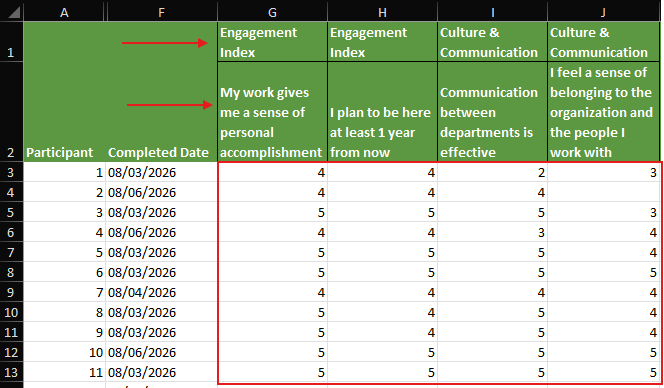
2. Supported Question Types — Required
Before preparing your historical data, confirm that the questions use a format supported by People Element.
Historical data can be imported for the following question types:
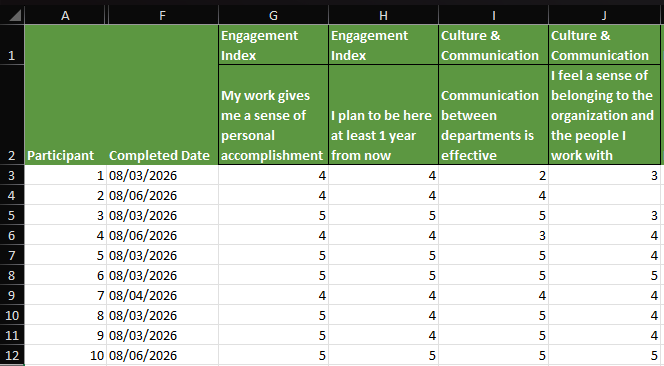
- Single Select rating scales — Likert or other rating scales with up to 10 response options
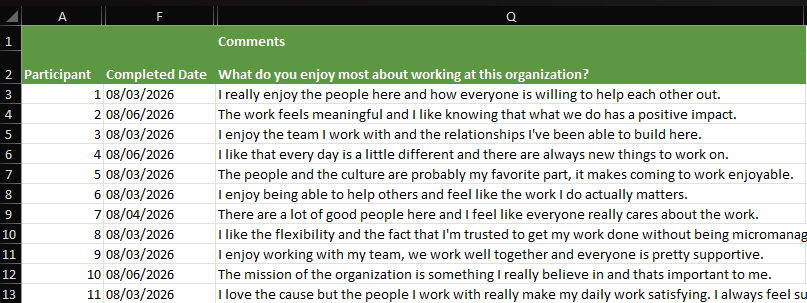
- Open-ended questions — Free-text responses
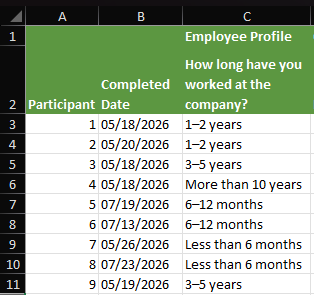
- Dropdown questions — Participants select one response option that is not scored on a rating scale
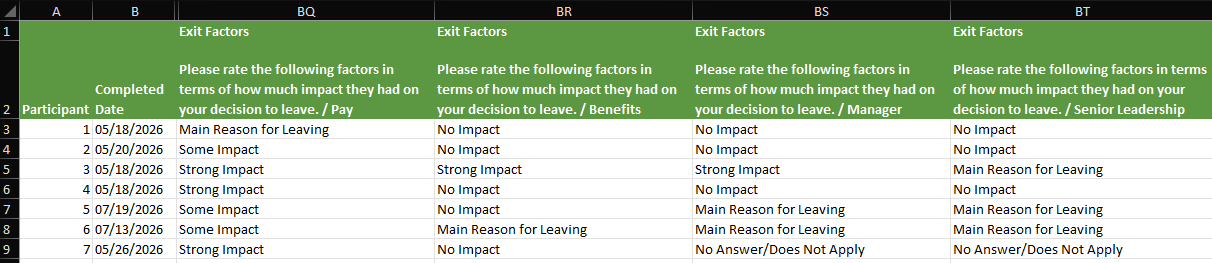
- Matrix questions — Participants rate sub-questions on one question.
- The data should be provided per sub-question as below
- The scale for the Matrix must be provided. Example below:
- No Answer/Does Not Apply
- No Impact
- Some Impact
- Strong Impact
- Main Reason for Leaving
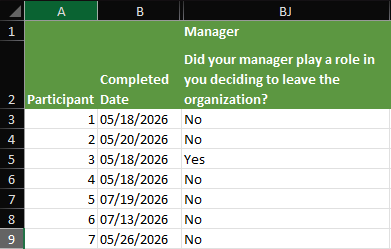
- Yes/No questions — Participants choose yes or no
Question types outside of those listed above are not currently supported for historical data imports.
3. Original Rating Scale — Required
Include the exact rating scale used for the historical survey. For example:
- 0 = No Answer
- 1 = Strongly Disagree
- 2 = Disagree
- 3 = Neutral
- 4 = Agree
- 5 = Strongly Agree
You should also provide information about how your previous survey provider calculated favorable and unfavorable responses.
This is important because People Element's favorability calculations may differ from those used by your previous provider. For example, on a standard 5-point scale, People Element considers responses of 4 and 5 favorable. If your previous provider used a different methodology, your historical results may look different when calculated using People Element's methodology.
Let your People Element team know whether you would like to adopt People Element's calculations for the historical data or whether the imported data should align with your previous scoring methodology.
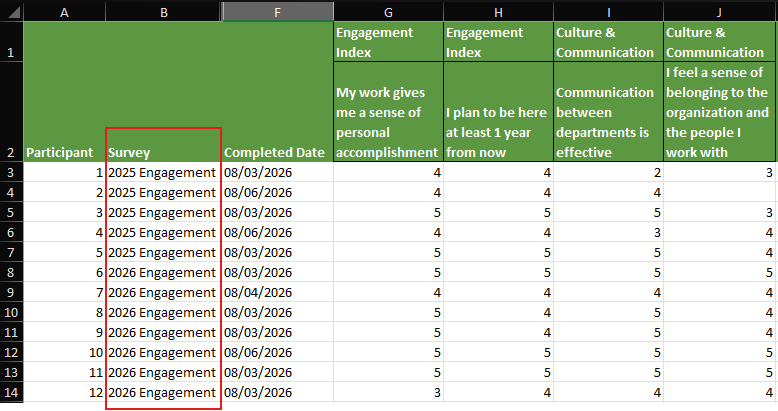
4. Historical Survey Identification — Required if Providing Multiple Surveys
If your file contains results from more than one historical survey, clearly identify which responses belong to each survey.
Historical datasets may be imported as:
- Separate surveys, or
- A single survey with demographic breakouts
Let your People Element team know which approach you prefer.
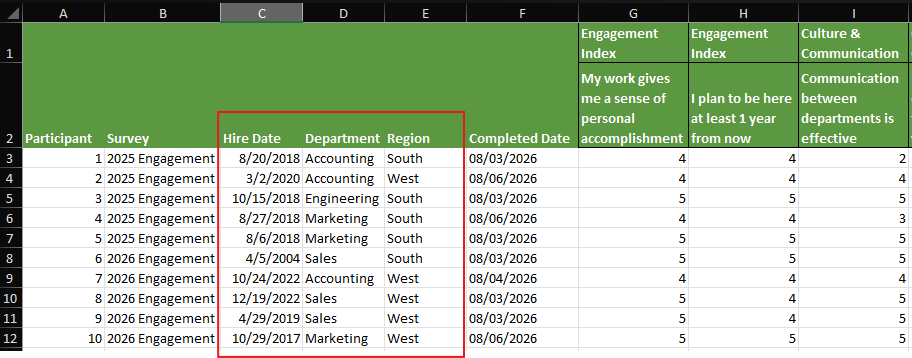
5. Demographic Data — Strongly Recommended
If available, include participant-level demographic information with your historical responses.
Demographic data is not required, but including it allows for more meaningful comparisons between historical and current survey results, including year-over-year demographic analysis.
Demographics must be associated with individual participants so their survey responses can be mapped correctly. Aggregate values by demographic are not supported.
Important: Historical data imports support a maximum of 10 demographics. If your file contains more than 10 demographics, select the 10 that are most important for historical reporting and year-over-year comparisons before submitting your file.
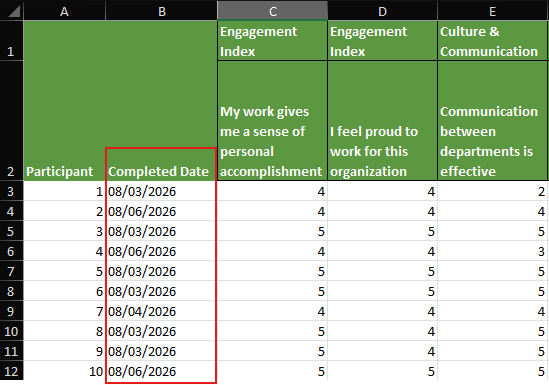
6. Survey and Response Dates — Recommended
If individual response dates are available, include them in your data file.
If individual response dates are not available, provide People Element with the date range during which the survey was conducted. People Element can then assign a response date within that data collection period.
Preferred File Format
For the smoothest import process, structure your historical data similarly to the screenshots shown throughout this article. If you are already a People Element user, you can use a Raw Data export from the platform as a model.
Before sending your file, confirm that it includes:
- Participant-level responses
- Full question text
- Original rating scale and response values
- Previous favorability/scoring methodology
- Clear survey identification if multiple surveys are included
- Participant-level demographics, if available
- Survey collection date range
- Individual response dates, if available
Once your data is prepared, send the file to People Element Support to begin the historical data import process.